1. Start with the device the project expects
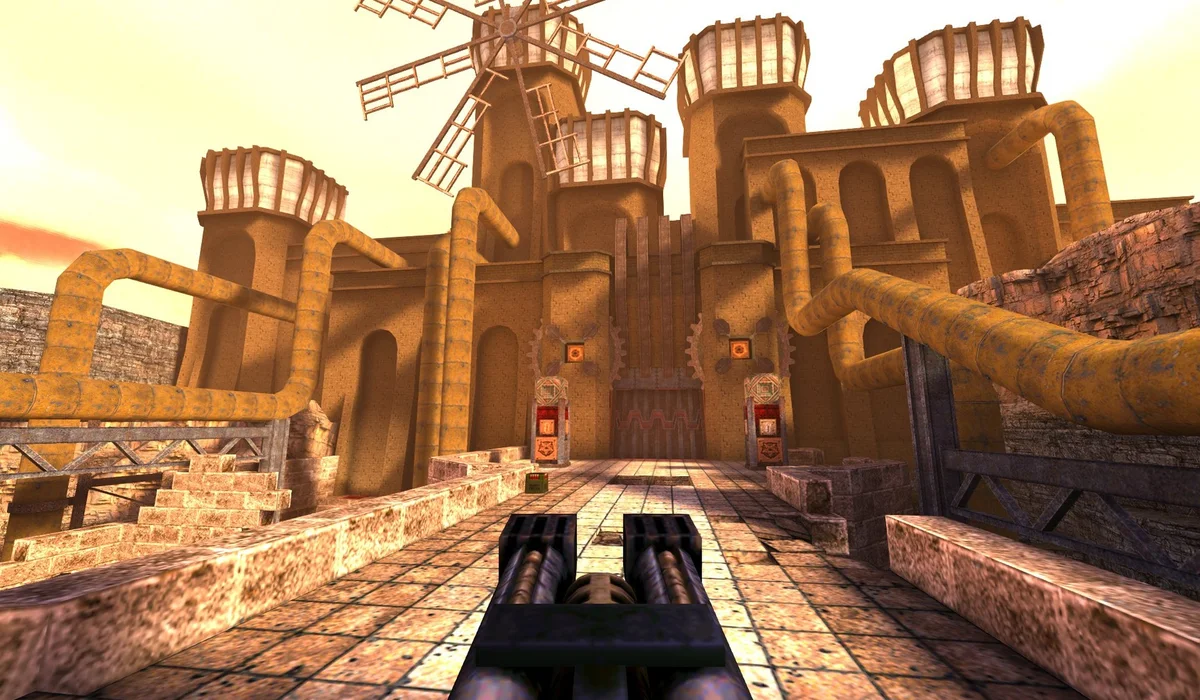
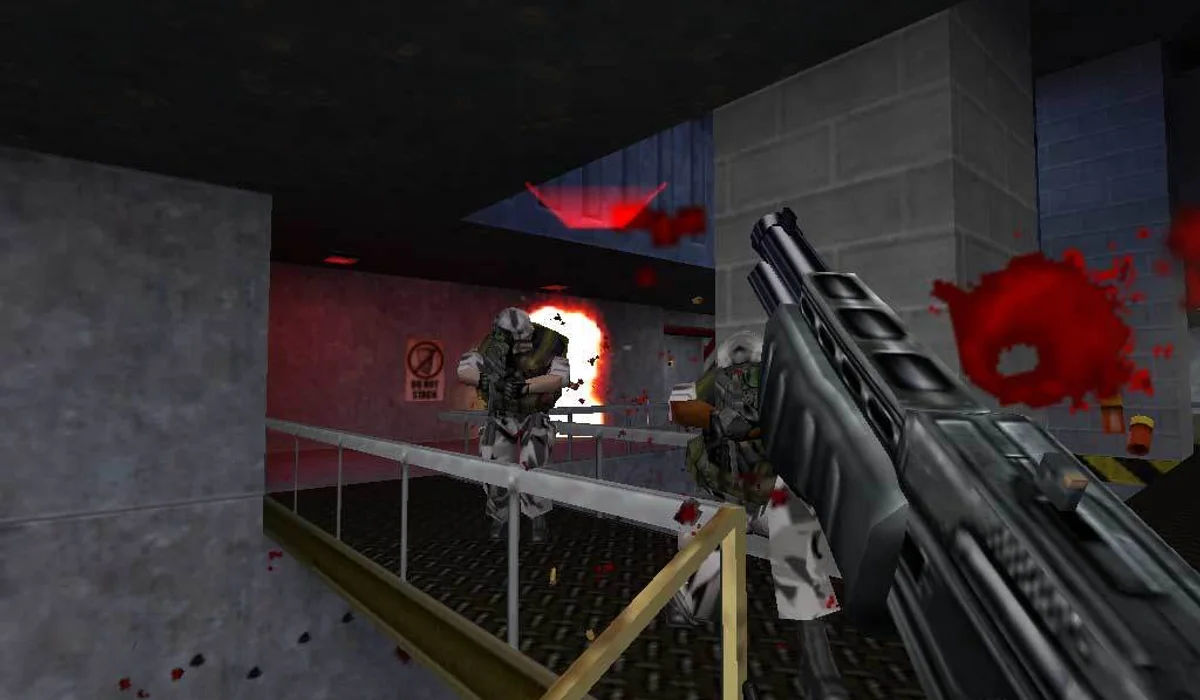
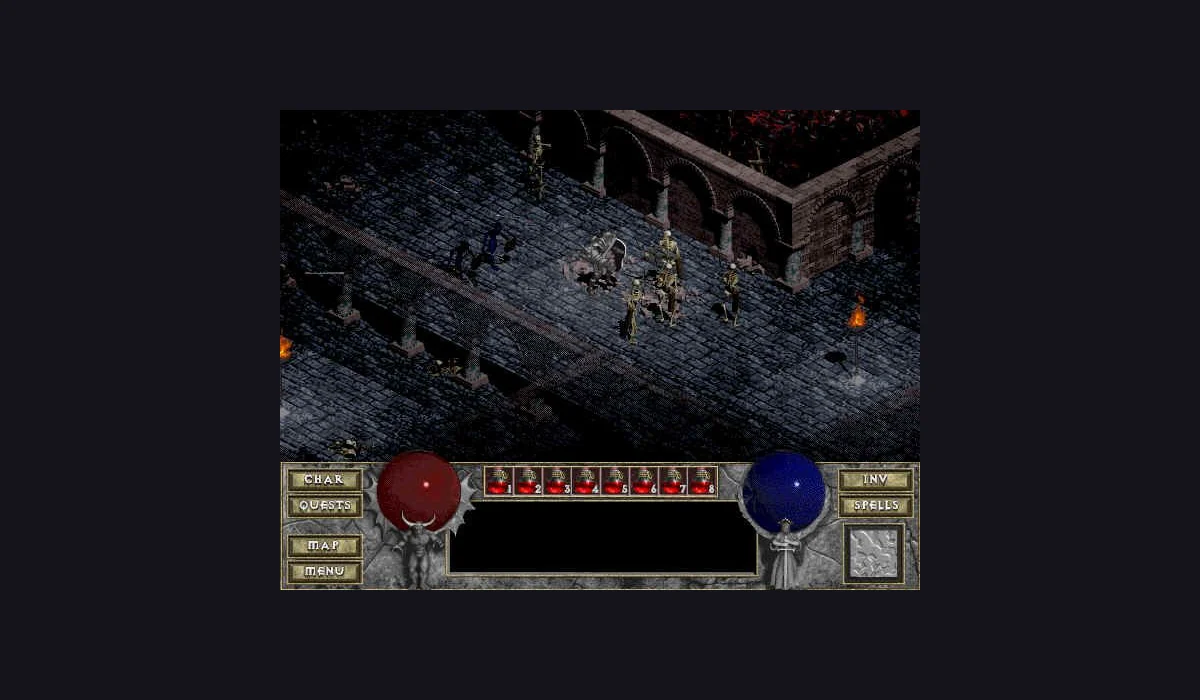
For the QuakeWorld, Half-Life Uplink and Diablo shareware players, a desktop or laptop with a keyboard and mouse is the recommended starting point. Keep a current browser available and let the project’s interface tell you which inputs it accepts. The surrounding RadiantGames app works on a narrow screen, but that alone cannot add touch controls to a game.
If you are looking specifically for phone play from the original Radiant Optimizer list, check the original Halo CE Mobile project’s guidance. Its mobile focus comes with its own compatible game-image requirements. Do not infer that the same support applies to another project just because it also runs in a browser.
2. Choose the experience before choosing a file
Read the version label before pressing a launch button. QuakeWorld joins a live multiplayer arena. WebXash’s Uplink selection is a Half-Life demo. DiabloWeb’s Play Shareware button starts its limited free version. These routes keep the first session understandable without implying that every original game is fully available.
A commercial game-data prompt is a separate branch. WebXash describes compatible files from your own game installation; DiabloWeb’s full-game path uses your own DIABDAT.MPQ. Projects such as Vice City and Halo use different archives or images. Follow the exact maintainer’s instructions rather than reusing one project’s file format in another.
3. Distinguish a download from a server connection
A browser engine may need to fetch and prepare its assets before a game menu appears. Half-Life’s Uplink choice is marked 45M in its launcher. Diablo shareware also has an initial load. If a progress indication is moving, let it finish before refreshing: a restart can make you repeat work that was already underway.
QuakeWorld adds a network session. A connection message can reflect server availability rather than the amount of game data left to load. When it stops progressing, compare the original q1 project in a separate tab. The same issue in both places is useful evidence that the problem is beyond the surrounding page.
4. Give the game your keyboard and mouse
Click inside the actual game window once it has loaded. An embedded player and the rest of a web page are separate input contexts: a key press while a toolbar button or search field has focus may never reach the game. Inspect the project’s menu or configuration for its current key mapping.
Fullscreen and mouse capture solve different problems. Fullscreen makes the game area larger; mouse capture changes how the pointer is delivered to the game. Escape may release a captured mouse or open the game menu. Click the scene again when you are ready to resume. Never approve an unrelated camera or microphone request just to make keyboard movement work.
5. Keep game saves separate from launcher bookmarks
The RadiantGames shelf stores links and recent-launch references in this app’s local browser storage. It does not hold an embedded project’s character files, game archives or save data. A saved launcher is useful for returning to the page; it is not a progress backup.
Check each original project’s current save, export and restore instructions before clearing browser data or moving to a new profile. Private browsing and restrictive storage settings may change what survives a session. If the project offers an export, use its documented flow and keep your own backup. This app cannot confirm that a third-party game save has been written.
6. Compare the embedded window with the original project
Each player includes an Open original link. This is the simplest way to distinguish an embedding issue from a project-wide problem. A browser may restrict third-party storage or a maintainer may change whether a project allows embedding. If the standalone project works while the embedded one does not, use the standalone tab for that session.
You can restart the embedded player after checking the launch steps, but doing so interrupts its current state. A browser-blocked script, an unavailable server and a missing owned file need different fixes; repeated reloads are not a diagnosis. Keep the symptom visible and follow the project’s own instructions for anything its launcher asks you to provide.